
欢迎关注我的公众号
在进行Web UI的自动化测试的时候,有些错误无法简单地通过文字描述清楚,还是需要进行页面截图。但为了让该优化不需要投入过多的时间,采用装饰器进行装饰。
基本思路:正常执行脚本,当异常或断言报错时,触发截图,再抛出原异常
编写装饰器
大概装饰器代码如下
def error_screenshot(func):
@wraps(func)
def decorator(*args, **kwargs):
try:
obj = func(*args, **kwargs)
except Exception as e:
截图操作
raise Exception(e)
return obj
return decorator
使用 tryexcept可以捕获到异常,使用 raiseException(e)完成截图后把异常继续抛出。
因为每次的 driver对象所处的 类名可能不一致,所以进行一定的判断。假设进行界面操作的类名都是以 ui结尾。
for key, value in locals()['kwargs'].items():
if key.endswith('ui'):
pic_name = f'{str(time.time())}.png'
value.driver.save_screenshot(pic_name)
allure.attach.file(f'{pic_name}', attachment_type=allure.attachment_type.PNG)
循环当前的 locals()['kwargs']拿到该类名,再使用该类中的 driver对象进行截图操作,并使用 allure将图片显示在报告中。
编写操作类
本次测试将 百度当做测试目标
简单的封装一个操作百度的界面操作类:BaiDuActionUi
包含了:
打开百度
open_web在输入栏输入指定内容
input_message在定位错误的输入栏输入指定内容
input_message_bug点击查找按钮
search关闭浏览器
close
class BaiDuActionUi():
def __init__(self):
self.url = 'https://www.baidu.com'
self.driver = webdriver.Chrome(executable_path='./chromedriver')
self.driver.implicitly_wait(3)
self.input = 'kw' # 搜索栏
self.search_btn = 'su' # 查找按钮
def __str__(self):
return '百度'
@allure.step('打开页面')
def open_web(self):
self.driver.get(self.url)
@allure.step('输入内容')
def input_message(self, message):
self.driver.find_element_by_id(self.input).clear()
self.driver.find_element_by_id(self.input).send_keys(message)
@allure.step('有异常的输入内容')
def input_message_bug(self, message):
self.driver.find_element_by_id(f'{self.input}1').clear()
self.driver.find_element_by_id(f'{self.input}1').send_keys(message)
@allure.step('点击查找')
def search(self):
self.driver.find_element_by_id(self.search_btn).click()
@allure.step('关闭浏览器')
def close(self):
try:
self.driver.close()
except Exception as e:
print(f'关闭浏览器失败:{e}')
编写测试代码
使用 fixture编写测试前浏览器的开启,测试后浏览器的关闭
正常测试:
test_selenium抛出断言错误的测试:
test_selenium1定位异常的测试:
test_selenium2
@pytest.fixture()
def baiduactionui():
baidu = BaiDuActionUi()
baidu.open_web()
yield baidu
baidu.close()
@error_screenshot
def test_selenium(baiduactionui):
"""
正常
"""
with allure.step(f'测试输入python点击查找'):
baiduactionui.input_message('python')
baiduactionui.search()
@error_screenshot
def test_selenium1(baiduactionui):
"""
assert 异常
"""
with allure.step(f'测试输入python点击查找'):
baiduactionui.input_message('python')
baiduactionui.search()
assert 0, '瞎报的异常'
@error_screenshot
def test_selenium2(baiduactionui):
"""
driver 查找元素异常
"""
with allure.step(f'测试输入python点击查找'):
baiduactionui.input_message_bug('python')
baiduactionui.search()
if __name__ == '__main__':
pytest.main([
'-v', 'test_selenium.py', '--alluredir', './allure_report'
])
os.system("allure generate -c allure_report/ -o report --clean")
测试结果

============================= test session starts ==============================
platform darwin -- Python 3.7.1, pytest-5.0.1, py-1.8.0, pluggy-0.12.0 -- /usr/local/bin/python3.7
cachedir: .pytest_cache
rootdir: /Users/zhongxin/Desktop/py/zx/test
plugins: allure-pytest-2.8.5
collecting ... collected 3 items
test_selenium.py::test_selenium PASSED [ 33%]
test_selenium.py::test_selenium1 FAILED [ 66%]
test_selenium.py::test_selenium2 FAILED [100%]
=================================== FAILURES ===================================
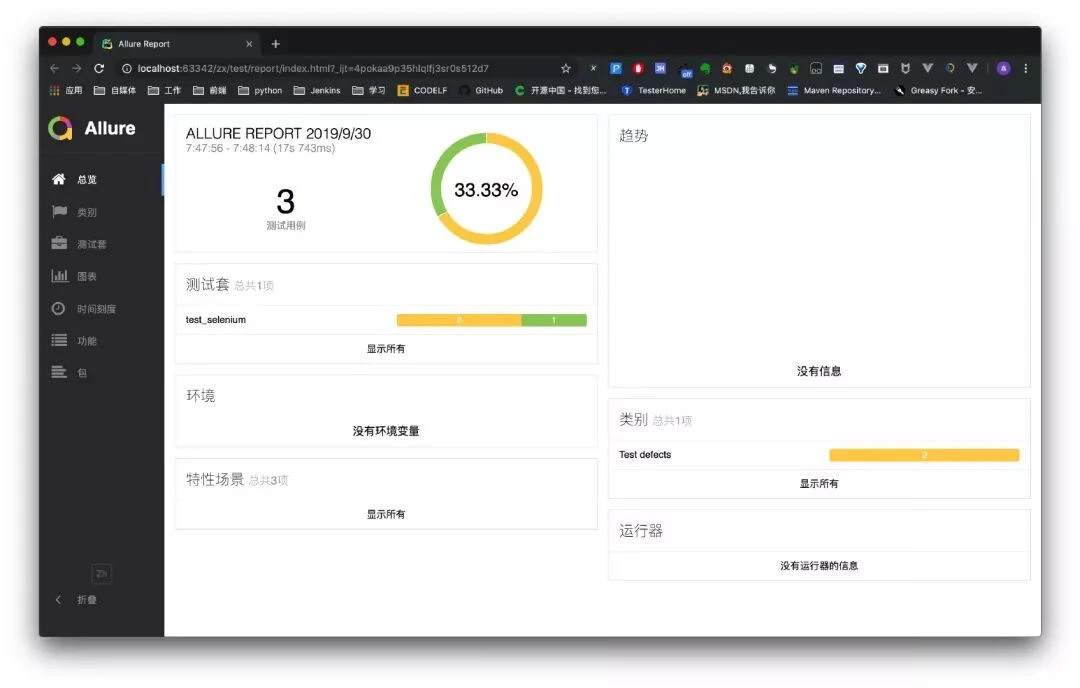
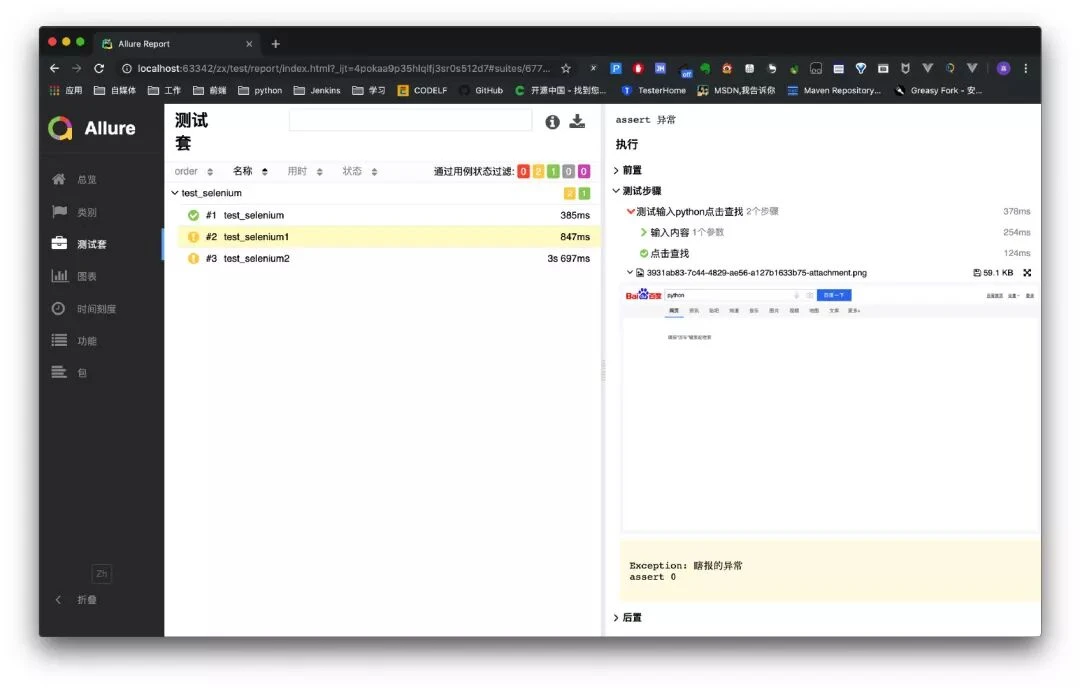
点击 测试套找到错误的脚本 test_selenium1
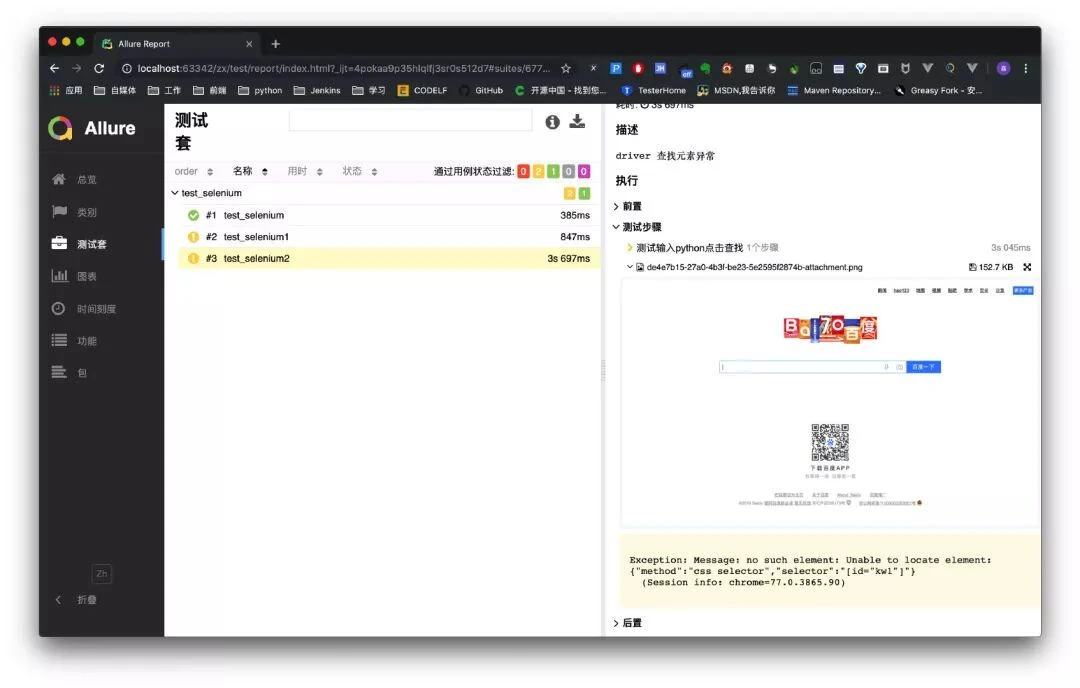
找到错误的脚本 test_selenium2
test_selenium没有错误,报告中没有截图
test_selenium1在完成输入和查找后断言报错,页面截图停留在搜索完成页面
test_selenium2在输入栏的位置定位元素错误,页面截图停留在搜索开始页面
完整代码
# -*- coding:utf-8 -*-
"""
@Describe: selenium_test
@Author: zhongxin
@Time: 2019-09-29 22:50
@File: test_selenium.py
@Email: 490336534@qq.com
"""
import os
import time
import allure
import pytest
from selenium import webdriver
from functools import wraps
def error_screenshot(func):
@wraps(func)
def decorator(*args, **kwargs):
obj = ''
try:
obj = func(*args, **kwargs)
except Exception as e:
for key, value in locals()['kwargs'].items():
if key.endswith('ui'):
pic_name = f'{str(time.time())}.png'
value.driver.save_screenshot(pic_name)
allure.attach.file(f'{pic_name}', attachment_type=allure.attachment_type.PNG)
raise Exception(e)
return obj
return decorator
class BaiDuActionUi():
def __init__(self):
self.url = 'https://www.baidu.com'
self.driver = webdriver.Chrome(executable_path='./chromedriver')
self.driver.implicitly_wait(3)
self.input = 'kw' # 搜索栏
self.search_btn = 'su' # 查找按钮
def __str__(self):
return '百度'
@allure.step('打开页面')
def open_web(self):
self.driver.get(self.url)
@allure.step('输入内容')
def input_message(self, message):
self.driver.find_element_by_id(self.input).clear()
self.driver.find_element_by_id(self.input).send_keys(message)
@allure.step('有异常的输入内容')
def input_message_bug(self, message):
self.driver.find_element_by_id(f'{self.input}1').clear()
self.driver.find_element_by_id(f'{self.input}1').send_keys(message)
@allure.step('点击查找')
def search(self):
self.driver.find_element_by_id(self.search_btn).click()
@allure.step('关闭浏览器')
def close(self):
try:
self.driver.close()
except Exception as e:
print(f'关闭浏览器失败:{e}')
@pytest.fixture()
def baiduactionui():
baidu = BaiDuActionUi()
baidu.open_web()
yield baidu
baidu.close()
@error_screenshot
def test_selenium(baiduactionui):
"""
正常
"""
with allure.step(f'测试输入python点击查找'):
baiduactionui.input_message('python')
baiduactionui.search()
@error_screenshot
def test_selenium1(baiduactionui):
"""
assert 异常
"""
with allure.step(f'测试输入python点击查找'):
baiduactionui.input_message('python')
baiduactionui.search()
assert 0, '瞎报的异常'
@error_screenshot
def test_selenium2(baiduactionui):
"""
driver 查找元素异常
"""
with allure.step(f'测试输入python点击查找'):
baiduactionui.input_message_bug('python')
baiduactionui.search()
if __name__ == '__main__':
pytest.main([
'-v', 'test_selenium.py', '--alluredir', './allure_report'
])
os.system("allure generate -c allure_report/ -o report --clean")
评论与讨论
使用 GitHub 账号留言,评论公开显示。
点评论时间可定位到原评论,在 GitHub 用评论旁的「…」修改或删除自己的留言。