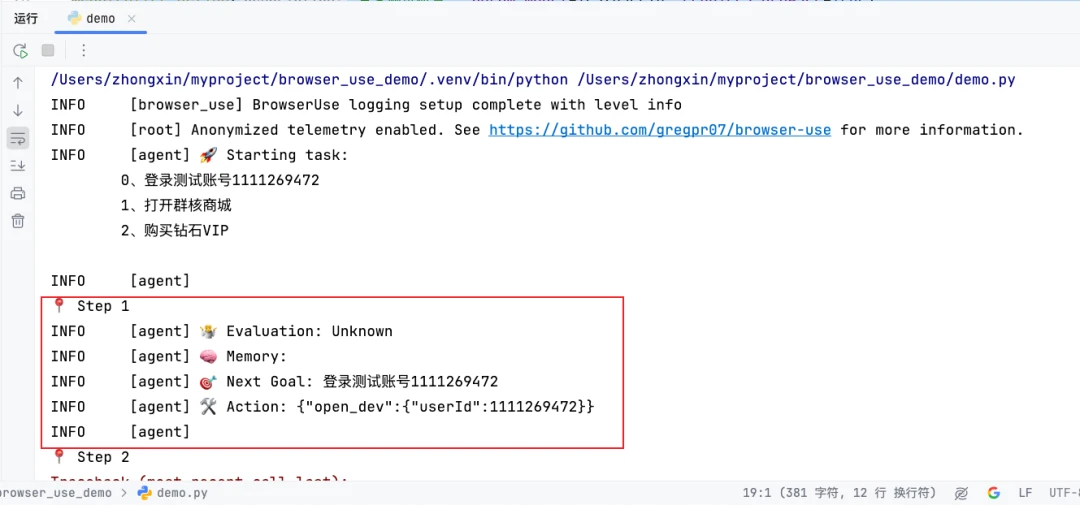
0、相关文档
一个很酷的想法,基于llm的浏览器自动化,这个开源项目有前途
https://github.com/gregpr07/browser-use
1、安装
Python3.11版本以上
bashpip install browser-use -i https://pypi.tuna.tsinghua.edu.cn/simple

pip install lxml_html_clean -i https://pypi.tuna.tsinghua.edu.cn/simple

playwright install
2、使用
使用
browser=Browser(BrowserConfig(headless=False))
可以让他不使用无头浏览器的方式打开,可以看到操作过程
py#!/usr/bin/env python
# -*- coding: utf-8 -*-
# @Author   : tingbai
# @Time     : 2024/12/2 16:45
# @File     : demo.py
# @Project  : PyCharm
from langchain_openai import ChatOpenAI
from browser_use import Agent
import asyncio
from browser_use.browser.browser import Browser, BrowserConfig

llm = ChatOpenAI(model="gpt-4o", base_url="xxxx/v1", api_key="sk-xxxx")


async def main():
    agent = Agent(
        browser=Browser(BrowserConfig(headless=False)),
        task="""
        0、打开酷家乐(http://zhuzhan.feat.qunhequnhe.com/uic/trust/login?userId=xxxx)
        1、打开群核商城
        2、购买钻石VIP
        """,
        llm=llm
    )
    result = await agent.run()
    print(result)


if __name__ == "__main__":
    asyncio.run(main())
3、内部原理
3.1、提示词
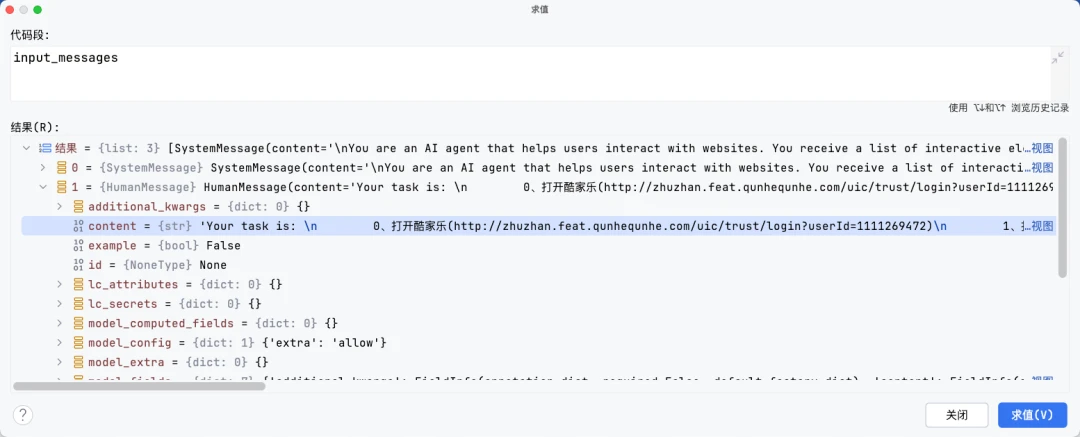
断点到第一步执行传入的提示词,分为3部分
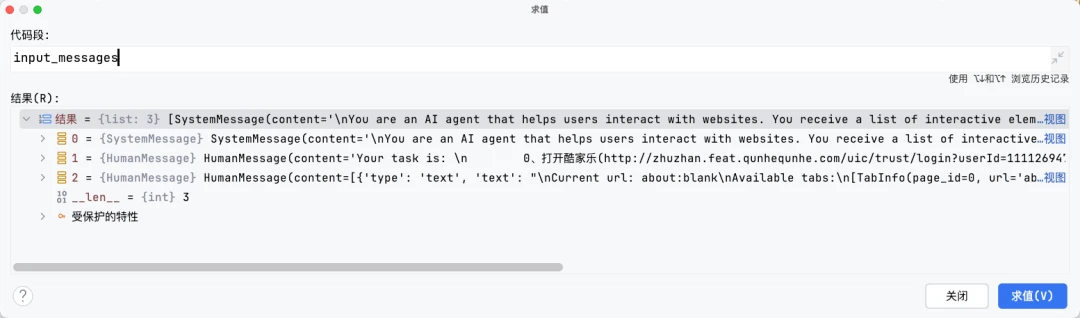
1、内置的提示词
trueYou are an AI agent that helps users interact with websites. You receive a list of interactive elements from the current webpage and must respond with specific actions. Today's date is 2024-12-04 18:48.

INPUT FORMAT:

Example:
33[:]    <button>Interactive element</button>
_[:] Text content...

Explanation:
index[:] Interactible element with index. You can only interact with all elements which are clickable and refer to them by their index.
_[:] elements are just for more context, but not interactable.
    : Tab indent (1 tab for depth 1 etc.). This is to help you understand which elements belong to each other.


You have to respond in the following RESPONSE FORMAT:

{{
    "current_state": {{
        "valuation_previous_goal": "String starting with "Success", "Failed:" or "Unknown" to evaluate if the previous next_goal is achieved. If failed or unknown describe why.",
        "memory": "Your memory with things you need to remeber until the end of the task for the user. You can also store overall progress in a bigger task. You have access to this in the next steps.",
        "next_goal": "String describing the next immediate goal which can be achieved with one action"
    }},
    "action": {{
        // EXACTLY ONE of the following available actions must be specified
    }}
}}

Your AVAILABLE ACTIONS:
Search Google:
{search_google: {'query': {'type': 'string'}}}
Navigate to URL:
{go_to_url: {'url': {'type': 'string'}}}
Go back:
{go_back: {}}
Click element:
{click_element: {'index': {'type': 'integer'}, 'num_clicks': {'default': 1, 'type': 'integer'}, 'xpath': {'anyOf': [{'type': 'string'}, {'type': 'null'}], 'default': None}}}
Input text:
{input_text: {'index': {'type': 'integer'}, 'text': {'type': 'string'}, 'xpath': {'anyOf': [{'type': 'string'}, {'type': 'null'}], 'default': None}}}
Switch tab:
{switch_tab: {'page_id': {'type': 'integer'}}}
Open new tab:
{open_tab: {'url': {'type': 'string'}}}
Extract page content to get the text or markdown :
{extract_content: {'value': {'default': 'text', 'enum': ['text', 'markdown', 'html'], 'type': 'string'}}}
Complete task:
{done: {'text': {'type': 'string'}}}
Scroll down the page by pixel amount - if no amount is specified, scroll down one page:
{scroll_down: {'amount': {'anyOf': [{'type': 'integer'}, {'type': 'null'}], 'default': None}}}
Scroll up the page by pixel amount - if no amount is specified, scroll up one page:
{scroll_up: {'amount': {'anyOf': [{'type': 'integer'}, {'type': 'null'}], 'default': None}}}

Example:
{"current_state": {"valuation_previous_goal": "Success", "memory": "We applied already for 3/7 jobs, 1. ..., 2. ..., 3. ...", "next_goal": "Click on the button x to apply for the next job"}, "action": {"click_element": {"index": 44,"num_clicks": 2}}}

IMPORTANT RULES:

1. Only use indexes that exist in the input list for click or input text actions. If no indexes exist, try alternative actions, e.g. go back, search google etc.
2. If stuck, try alternative approaches, e.g. go back, search google, or extract_page_content
3. When you are done with the complete task, use the done action. Make sure to have all information the user needs and return the result.
4. If an image is provided, use it to understand the context, the bounding boxes around the buttons have the same indexes as the interactive elements.
6. ALWAYS respond in the RESPONSE FORMAT with valid JSON.
7. If the page is empty use actions like "go_to_url", "search_google" or "open_tab"
8. Remember: Choose EXACTLY ONE action per response. Invalid combinations or multiple actions will be rejected.
9. If popups like cookies appear, accept or close them
10. Call 'done' when you are done with the task - dont hallucinate or make up actions which the user did not ask for
2、task中传入的内容
3、当前页面截图的文本内容和base64位转换后的截图
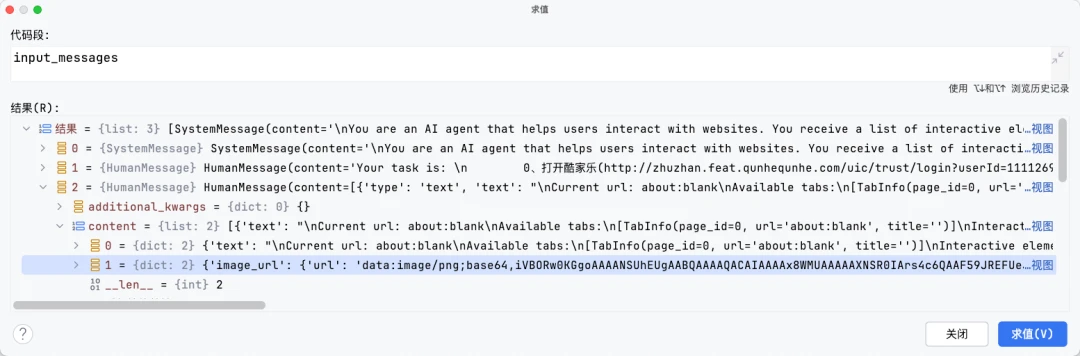
其中获取页面截图和元素的过程在
browser_use.browser.context.BrowserContext._update_state中
async def _update_state(self, use_vision: bool = False) -> BrowserState:
        """Update and return state."""
        await self.remove_highlights()
        page = await self.get_current_page()
        dom_service = DomService(page)
        content = await dom_service.get_clickable_elements()  # Assuming this is async

        screenshot_b64 = None
        if use_vision:
            screenshot_b64 = await self.take_screenshot()

        self.current_state = BrowserState(
            element_tree=content.element_tree,
            selector_map=content.selector_map,
            url=page.url,
            title=await page.title(),
            tabs=await self.get_tabs_info(),
            screenshot=screenshot_b64,
        )

        return self.current_state
执行
content = await dom_service.get_clickable_elements()
后可以看到页面高亮出可操作元素
如图所示,元素可点击的内容通过索引1,2,3,4来标记,在后续点击操作的时候使用
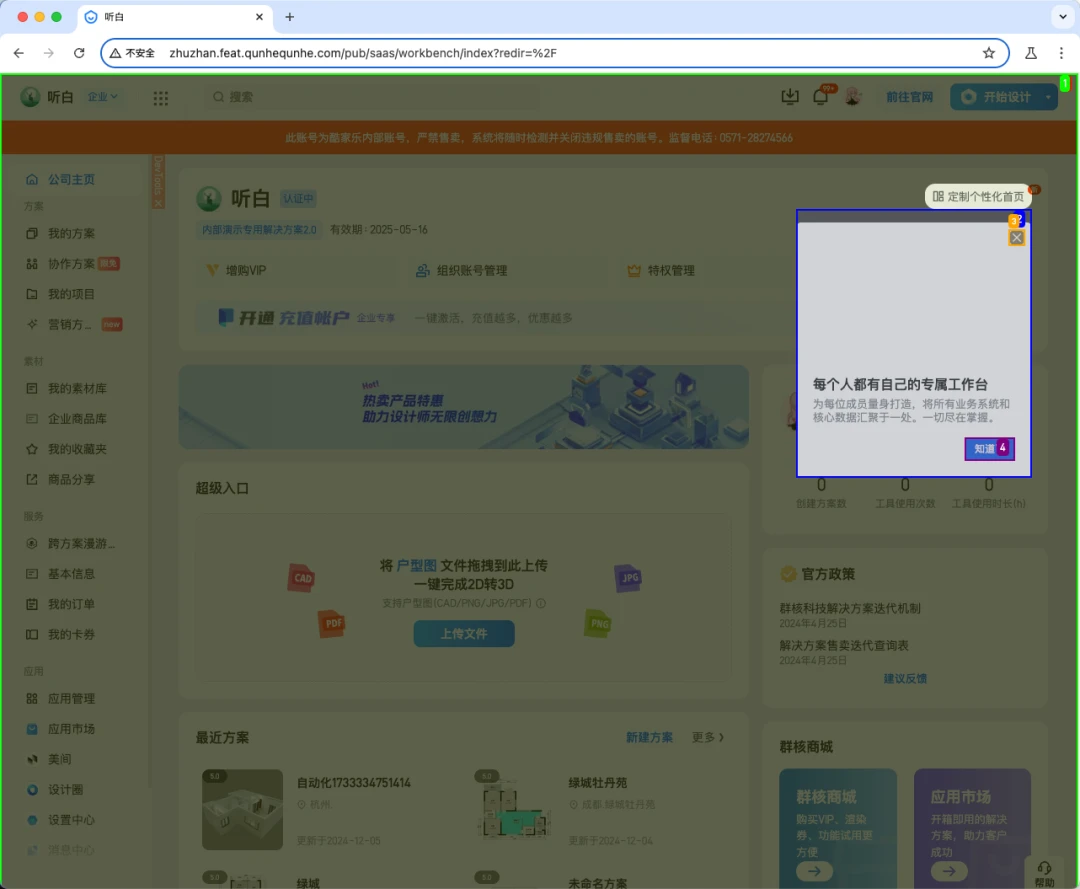
然后进行截图,并移除高亮
3.2、处理返回结果并执行操作
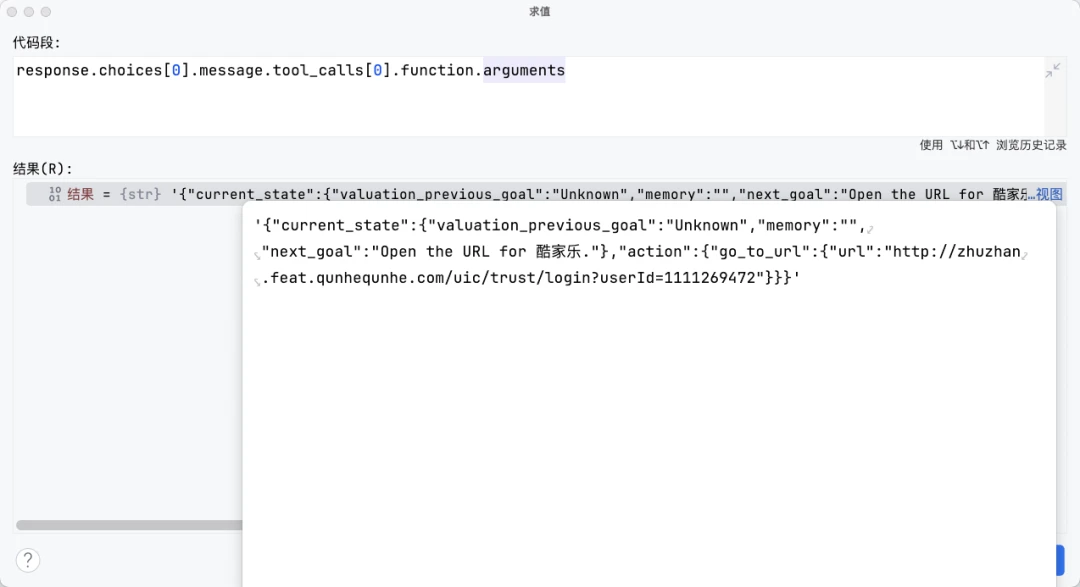
调用接口/chat/completions将内容传递给openapi
从返回结果的
response.choices[0].message.tool_calls[0].function.arguments
中可以拿到
'{"current_state":{"valuation_previous_goal":"Unknown","memory":"","next_goal":"Open the URL for 酷家乐."},"action":{"go_to_url":{"url":"http://zhuzhan.feat.qunhequnhe.com/uic/trust/login?userId=1111269472"}}}'
json.loads(response.choices[0].message.tool_calls[0].function.arguments)['action']
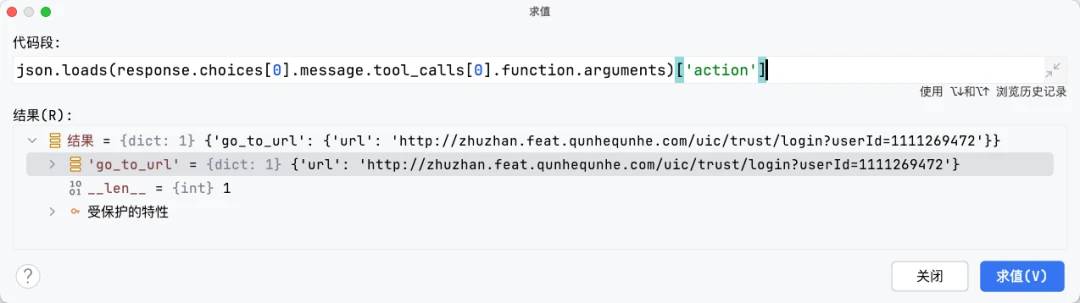
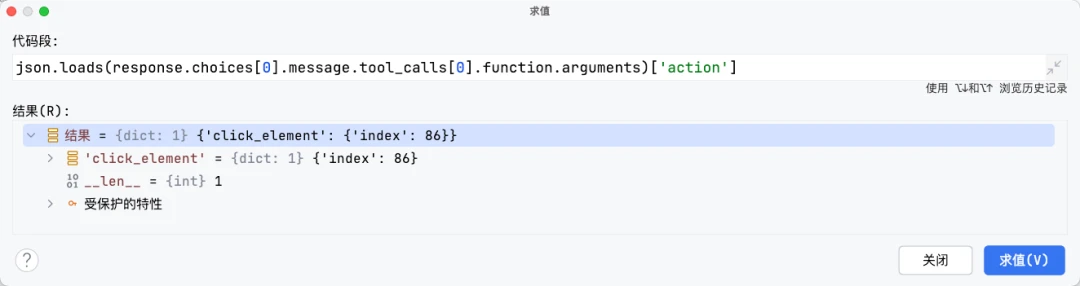
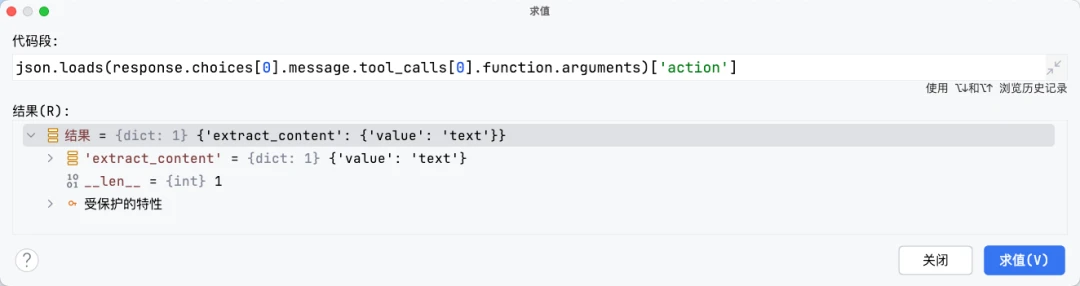
它会根据返回的内容执行操作
这个参照上面提示词中的【Your AVAILABLE ACTIONS】
在执行
result = await self.controller.act(model_output.action, self.browser_context)
的时候会根据关键词找到
site-packages/browser_use/controller/service.py
中的具体方法进行操作
例如
Navigate to URL: {go_to_url: {'url': {'type': 'string'}}} 对应的go_to_url方法
@self.registry.action('Navigate to URL', param_model=GoToUrlAction, requires_browser=True)
async def go_to_url(params: GoToUrlAction, browser: BrowserContext):
    page = await browser.get_current_page()
    await page.goto(params.url)
    await page.wait_for_load_state()
最后完成操作后将当前页面的内容和截图放入到下一步传给openapi在进行循环直至结束
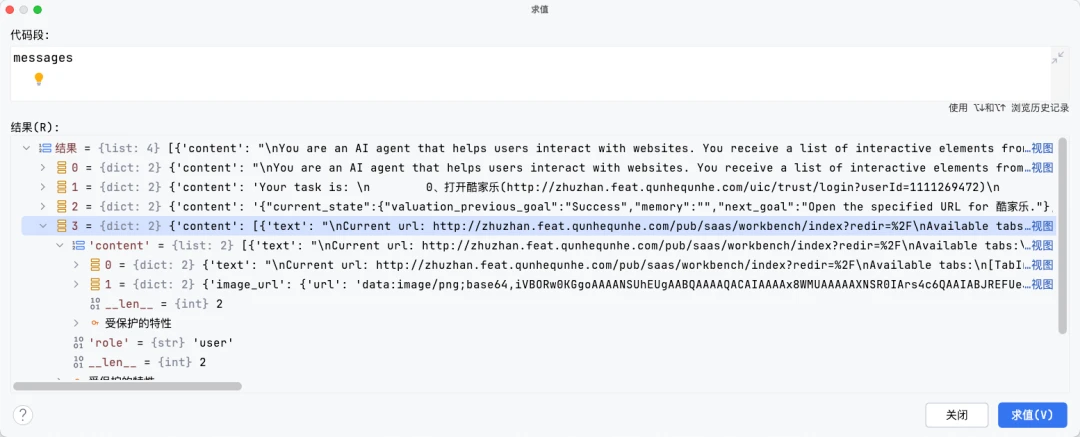
3.3、自定义操作
如果需要有自己的特殊操作可以 修改提示词+增加一个方法 来用自定义
例如:
class TestUserId(BaseModel):
    userId: int


controller = Controller()


@controller.action('登录测试账号', param_model=TestUserId, requires_browser=True)
async def open_dev(params: TestUserId, browser: BrowserContext):
    page = await browser.get_current_page()
    await page.goto(f"http://zhuzhan.feat.qunhequnhe.com/uic/trust/login?{params}")
    await page.wait_for_load_state()
再把controller传给Agent
agent = Agent(
        browser=Browser(BrowserConfig(headless=False)),
        task="""
        ...
        """,
        llm=llm,
        controller=controller
    )